How to Register as an International Student on portal
How to Register as an International Student on portal
How to Register as an International Student on Exammasterai.com (Free Guide)Learn how to create a free International Student account on Exammasterai.com. Follow this step-by-step guide to unlock smart automated tests and quizzes.
Introduction
With the rapid rise of digital education, students worldwide are looking for efficient ways to test their knowledge and track their progress without dealing with outdated interfaces. Exammasterai.com provides a global computer-based testing (CBT) portal engineered to make exam preparation smooth, fast, and highly reliable.
If you are an international learner looking to access world-class question banks, practice micro-level textbook quizzes, or download verifiable performance sheets, registering on the site is completely free and takes less than two minutes. This comprehensive guide breaks down the exact registration process to help you get started today.
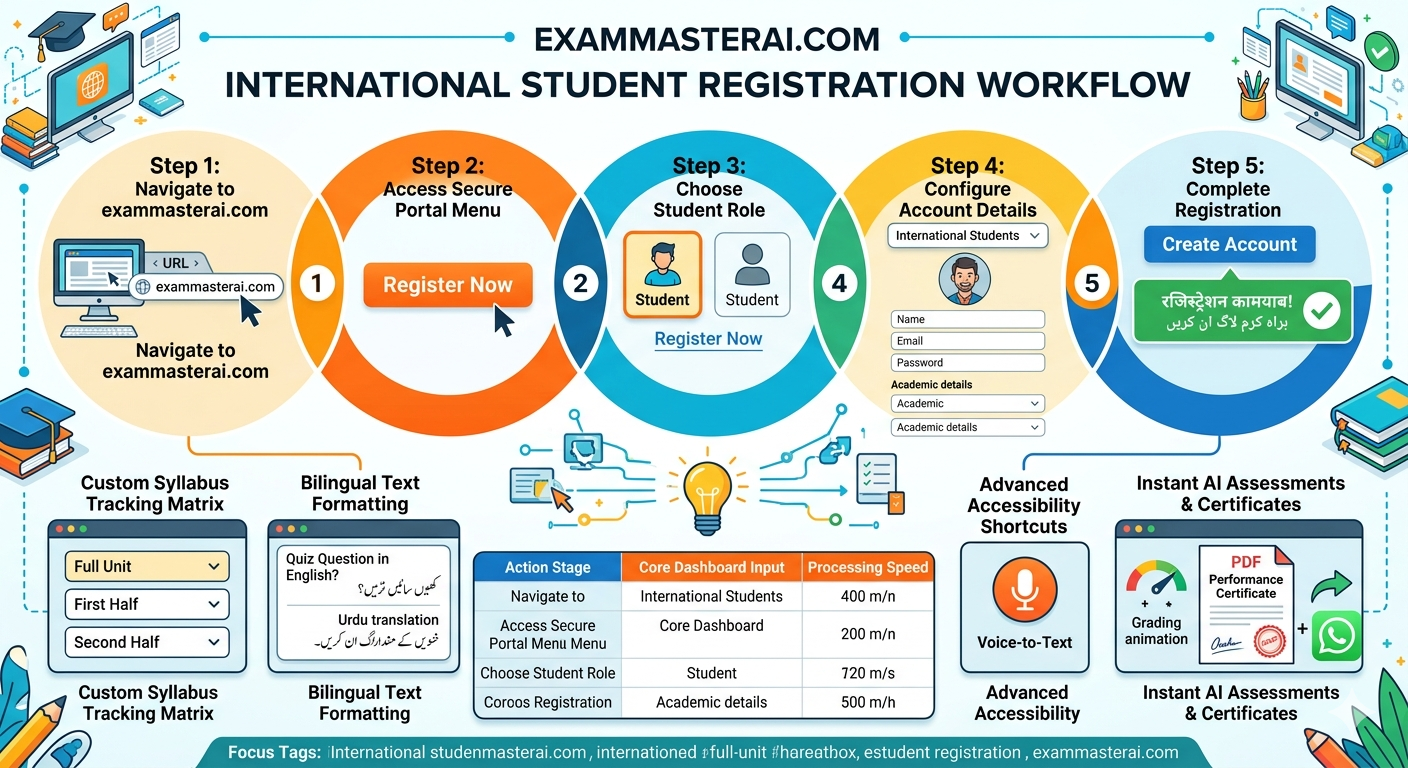
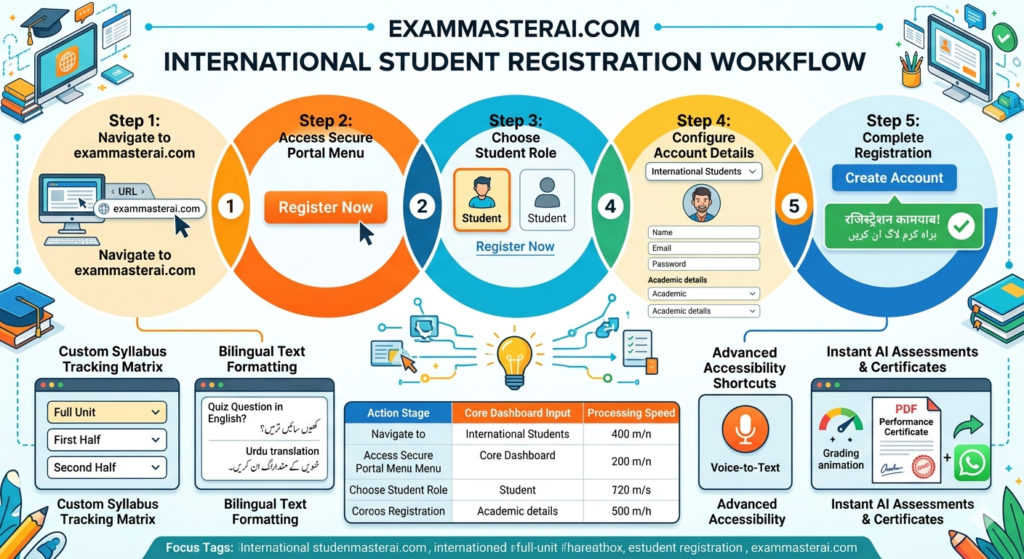
Step-by-Step International Student Registration Workflow
Step 1: Navigate to the Official Website
Open your preferred web browser on your computer or mobile device. In the search bar, type in exammasterai.com and press enter. Click on the first search result to access our secure home dashboard.
Step 2: Access the Secure Portal Menu
Once the main homepage loads completely, you will see clean navigational buttons. Find and click on the orange “Register Now” button located on the main promotional banner. The system will briefly run a secure browser check and securely redirect you to the main control panel address: portal.exammasterai.com.
Step 3: Choose the Student Role Tab
The dynamic login module contains three primary role categories:
- Teacher
- Admin
- StudentClick directly on the “Student” tab to open the student registration parameters. Directly below, look for the text link that says “Don’t have an account? Register Now” and click it to open the fresh enrollment form.
Step 4: Configure Your Account Details
To set up your account successfully, fill out the user registration fields in the following order:
- Select Student Type: Click the dropdown menu labeled Choose Student Category and make sure to select “International Students”.
- Upload Profile Image: Choose to either capture a snapshot directly through your camera hardware or click the Upload button to select a professional profile photo from your computer storage.
- Provide Personal Information: Type in your full legal name, an active email address, and a secure password.
- Academic Parameters: Select your current class level (e.g., Class 9), enter your school name, add your location address, and type in your valid phone number.
Step 5: Complete Your Registration
Double-check all fields for accuracy. Once everything is filled out, click the blue “Create Account” button at the bottom of the page. The system will process your information immediately and display a green success notification: “रजिस्ट्रेशन कामयाब! براہِ کرم لاگ ان کریں” (Registration Successful! Please Login).
Technical Features Available After Free Enrollment
- Custom Syllabus Tracking Matrix: Once logged into your control panel, you can filter test sheets down to specific unit components—allowing you to focus study sessions strictly on a Full Unit, a First Half, or a Second Half of any chapter.
- Bilingual Text Formatting: To assist students across diverse regional mediums, all quizzes feature an incredibly organized layout—where the English sentence comes clearly on the first line, followed immediately by its precise Urdu translation directly below it.
- Advanced Accessibility Shortcuts: If typing out extensive paragraphs causes fatigue during subjective trials, students can easily click the built-in microphone icon to activate Voice-to-Text dictation in either language medium.
- Instant AI Assessments & Certificates: The automated background grading engine processes submitted exam pages in just 2 to 3 seconds, delivering a high-contrast, officially stamped Performance Certificate PDF ready to share with parents or tutors over WhatsApp channels.
Summary of the Registration Process
| Action Stage | Core Dashboard Input | Processing Speed |
| 01. Discovery | Visit exammasterai.com and select the orange registration button. | Less than 5 Seconds |
| 02. Selection | Toggle the Student tab role and choose International Students. | Instant |
| 03. Upload & Details | Attach your profile image and input your class level and contact details. | Under 60 Seconds |
| 04. Finalization | Click Create Account and view the green success confirmation popup. | 2 to 3 Seconds |
Conclusion
Setting up your global learning account on Exammasterai.com is a simple, straightforward process built around complete user security and convenience. By following these quick registration steps, international students can unlock automated exam tools, reduce preparation stress, and track their scores seamlessly. Register your free account today, configure your textbook ranges, and take the first major step toward achieving great academic success!
Focus Tags for this Post
exammasterai, exammasterai.com, international student registration guide, free online student account creation, computer based testing portal cbt, online exam master dashboard, chapter wise test generator, bilingual exam question layout, voice to text test typing, instant online grading tool, download performance certificate pdf, class 9 physics test configuration, student control panel login, reducing student exam anxiety, smart school assessment software