
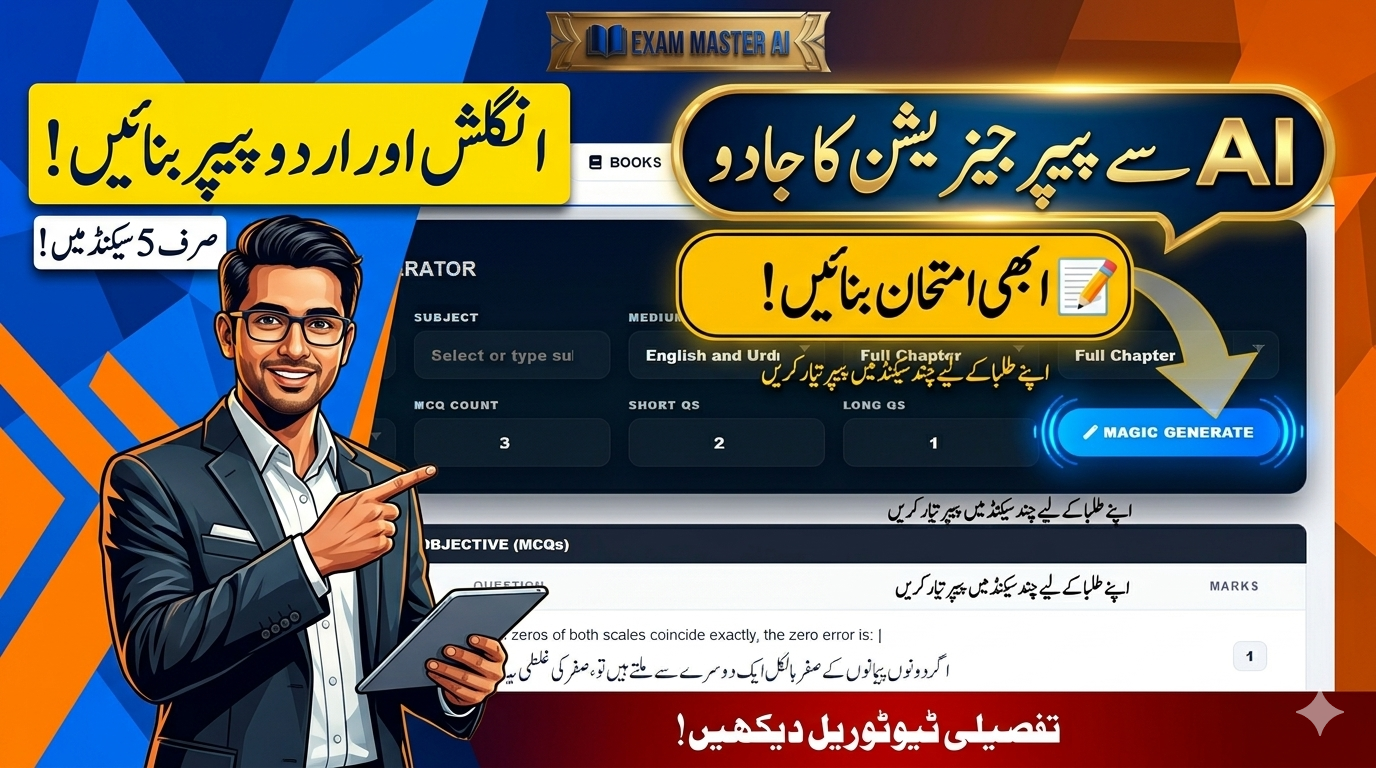
Exam Master AI Teacher Dashboard Guide: How to Sign In and Generate Papers
Exam Master AI Teacher Dashboard Guide: How to Sign In and Generate Papers. Log in to your Exam Master AI teacher dashboard and learn how to use the AI Smart Generator. Create custom bilingual test papers with a single click!
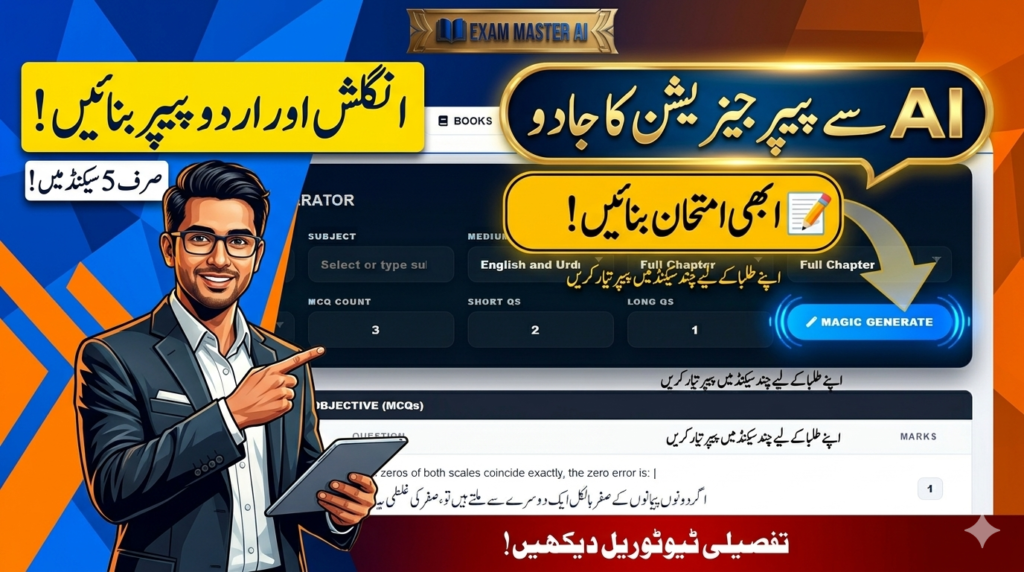
After successfully completing your registration, logging into your dashboard unlocks the true potential of automated education. The Exam Master AI Teacher Dashboard (portal.exammasterai.com/dashboard.php) is a masterfully designed control panel that allows educators to generate flawless test papers without typing a single word.
In this guide, we will walk you through the simple sign-in process and take an in-depth tour of the feature-rich interface to show you how to maximize your productivity.
Part 1: How to Sign In as a Teacher
Accessing your personal panel is straightforward. Simply follow these steps:
- Go to the login page at portal.exammasterai.com.
- Enter your registered Email Address and Secure Password.
- Click “Login”. You will be immediately redirected to your active workspace dashboard.
Part 2: Inside the Exam Master AI Dashboard (Full Tour)
Once logged in, you are greeted by a clean, modern interface structured to make exam creation fast and stress-free. Let’s break down the primary components of your panel:
1. Top Navigation Bar
At the top of the interface, you have direct shortcut tabs to manage your entire academic repository:
- Papers: View, edit, or print your previously generated test sheets.
- Books & Notes: Quick access to integrated curriculum resources.
- Take Test: Manage settings for live online student examinations.
- Account Controls: View and update your profile or academy preferences.
2. The AI Smart Generator Panel
This is the core engine of Exam Master AI. Instead of spending hours selecting and formatting questions, the automated panel lets you filter your needs using intuitive dropdown menus:
- Class / Grade & Subject: Select the precise target standard and course title.
- Medium: Choose between English Medium, Urdu Medium, or English and Urdu (Bilingual) layout options.
- Chapter/Unit & Syllabus Range: Narrow down your selection to a specific full chapter, first-half/second-half distribution, or predefined academic term.
- Question Budget Counters: Input the exact count of MCQs, Short Questions, and Long Questions you want to populate on your paper.
3. The “Magic Generate” Feature
Once you configure your ideal metrics, hitting the glowing blue “Magic Generate” button commands the artificial intelligence engine to compile a completely original, randomly distributed test set instantly based on your exact selections.
4. Interactive Live Preview Grid
Directly underneath the generator parameters, the Section A: Objective (MCQs) grid gives you a real-time review window. Here, you can view the live layout of the questions, where English text sits perfectly aligned alongside beautifully rendered Urdu translations. Each entry comes equipped with structural selectors to give you ultimate authority over final revisions.
Conclusion: Empowering Digital Classrooms
The Exam Master AI teacher dashboard is built to save hours of manual typing and administrative formatting delay. By keeping the interface streamlined, intuitive, and 100% free, it puts elite-level testing capabilities directly into the hands of every school administrator and academy tutor in Pakistan.
🔗 Log in and start creating today: Exam Master AI Portal Dashboard

1 Comment